
Introduction
This article provides a comprehensive guide on using Helix’s global search, a powerful feature that allows you to search across your entire workspace. You will learn how to get started with global search, when to use it, and how to perform basic and advanced searches using regex. Additionally, this article includes tips and tricks to enhance your search efficiency. This tutorial was updated for Helix 25.01.
Getting started with global search
Global search allows you to search across the entire workspace, unlike standard search, which is limited to the current buffer. This makes global search a powerful tool that can complement language server-based features or be used independently when no language server is available.
- Trigger standard search with the
/key. - Trigger global search with
Space /.
When to use global search
Consider using a language server before opting for global search. For example:
- Use
Space rto rename symbols and rename a variable across your entire codebase. - Use
Space sto open the workspace symbol picker and search for a specific symbol, such as a function.
Not all language servers provide this functionality, so consult their respective documentation.
Basic global search
When you open the global search picker with Space /, the search term is pre-filled from the contents of the search register if you previously performed a standard search using / or ?. Press Enter to accept the suggestion, or enter a new search term to replace it.
In the following example, Enter is pressed to accept the suggestion, and the sentence is found inside a document in the workspace:


To populate the search register in advance with a value other than the last standard search, use one of the following methods.
Pre-selecting a search term from the document
Method 1: Copy text to the search register using *
- Select text and press
*to copy it into the search register, with regex escaping applied.
By default, word boundaries \b are automatically added around the selected text. For example, searching for gorilla results in \bgorilla\b, which prevents matches in similar words like gorillas. If you do not want this behavior, use Alt-* instead.
Method 2: Yank directly to the search register
- Yank the current selection to the
/register using"/y.
This method does not apply regex escaping, unlike using *.
Method 3: Use the <Selection Contents> register
- Select a word using
miw.
This selection is automatically copied to the<Selection Contents>register, represented by the.symbol, which always contains the current selection. - Open the global search picker with
Space /. - Press
Ctrl-r .to paste the contents of the<Selection Contents>register.
Note: The pasted text is not regex-escaped.
Using regex
For complex queries, learn about regex features. Unlike other pickers that use fzf search syntax, global search employs regular expression queries (regex). Regex consists of special characters representing rules used to search and match within every file in your project.
Escape special regex characters in search text with \
To select the first column of a Markdown table, use ^ to anchor the match at the start of the line and | for the table character. Since | is also used in regex to represent alternation, you must escape it. Therefore, the search pattern is ^\|.
Here is an example using standard search showing the highlighted selection:
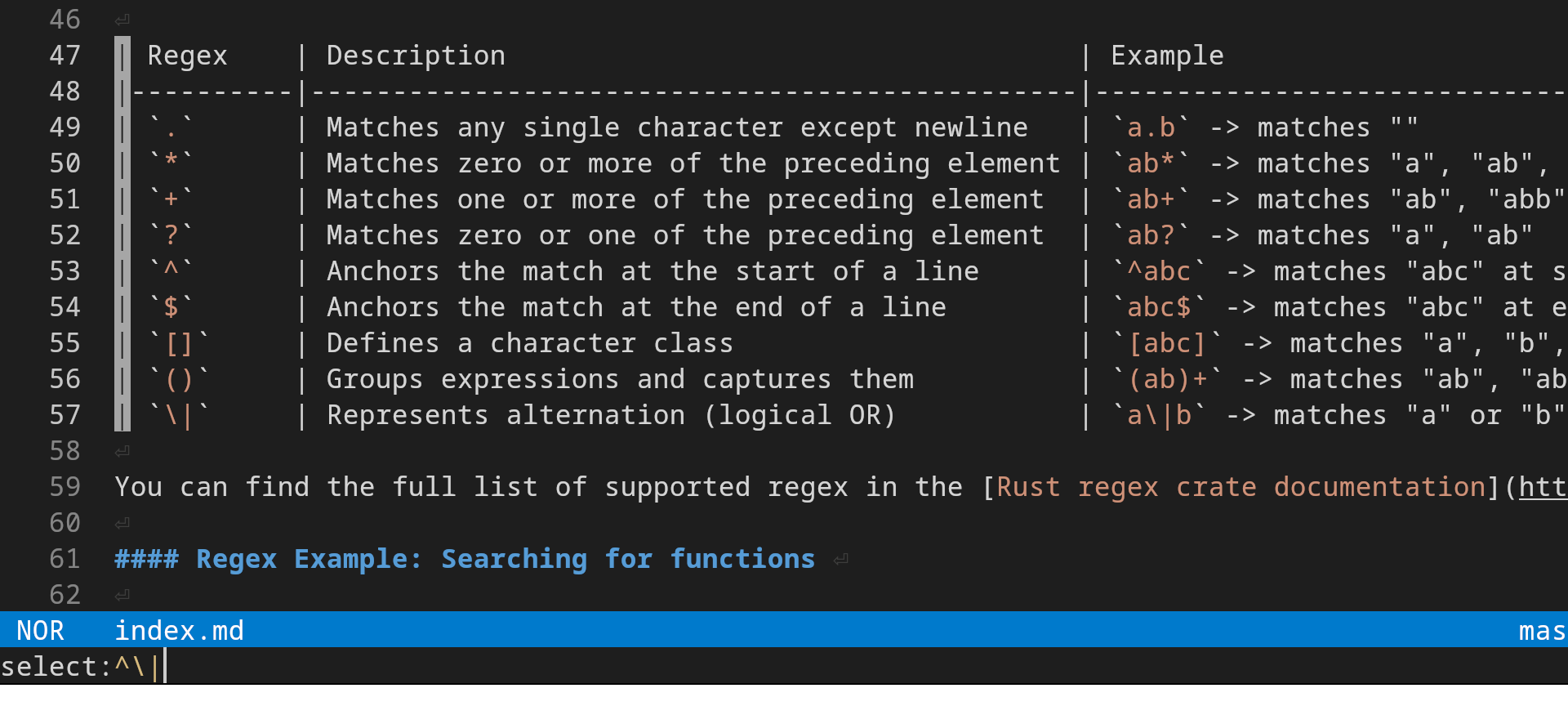
In global search, each line matched appears as a separate result.
Commonly used regex characters include:
| Regex | Description | Example |
|---|---|---|
. |
Matches any single character except newline | a.b -> matches “aab”, “abb”, “acb”… |
* |
Matches zero or more of the preceding element | ab* -> matches “a”, “ab”, “abb” |
+ |
Matches one or more of the preceding element | ab+ -> matches “ab”, “abb” |
? |
Matches zero or one of the preceding element | ab? -> matches “a”, “ab” |
^ |
Anchors the match at the start of a line | ^abc -> matches “abc” at start |
$ |
Anchors the match at the end of a line | abc$ -> matches “abc” at end |
| |
Represents alternation (logical OR) | a|b -> matches “a” or “b” |
Find the full list of supported regex in the Rust regex crate documentation. Below are examples of useful regex searches.
Regex example 1: Matching whole words
To find whole words, use \b for word boundaries:
The chimpanzee observed a group of gorillas.
Many gorillas gathered near the chimpanzees.
\bchimpanzee\bmatches only “chimpanzee,” not “chimpanzees.”\bgorillas\bmatches only “gorillas,” not “gorilla.”
Adding \b is automated with *, but there may be situations where you need to add it manually.
Regex example 2: Change case sensitivity on the fly
Helix uses smart-case = true by default, making regex searches case-insensitive unless the pattern contains uppercase characters:
let userName = "Chimpanzee";
let Username = "Gorilla";
let username = "Orangutan";
- Searching for
usernamematchesuserName,Username, andusername. - Searching for
Usernamematches onlyUsername.
To change case sensitivity dynamically, use regex flags directly before the search term:
(?-i)username: Case-sensitive search, matches onlyusername.(?i)Username: Case-insensitive search, matchesuserName,Username, andusername.
Regex example 3: Searching for functions
To find all function calls (for example foo(), bar(), baz(arg)):
\w+\([^)]*\)
- Explanation:
\w+: Matches one or more word characters (function name).\(: Matches the opening parenthesis.[^)]*: Matches any character except a closing parenthesis.\): Matches the closing parenthesis.
Narrowing your results by path
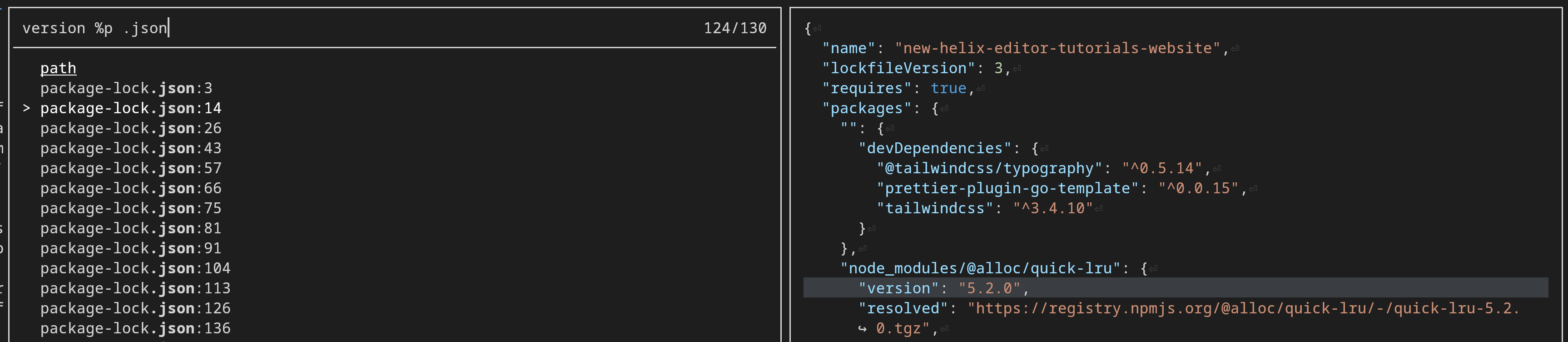
Different pickers offer various columns to filter your results. By referencing a specific column and adding another search term, you can refine your search more effectively. In global search, an additional column is available: path.
To select the path column, use the % character followed by an incremental search term. In this case, p suffices since only one column begins with p. If your theme supports it, the column should be highlighted.
For example, to search files in your workspace for the string version and narrow results to only include .json files, use the following search:
version %p .json
Tips and tricks
Ignoring files
You can ignore files using .gitignore, global ignore settings, and Helix-specific ignore files, with options for both local and global configurations. Details are in the documentation:
https://docs.helix-editor.com/master/editor.html#editorfile-picker-section
As an example, to prevent Helix from searching node_modules in a JavaScript project, create a .gitignore file in the project root:
.gitignore
node_modules/
Reopening the global search picker in its previous state
Use Space ' to reopen the last used picker in its previous state. This is useful for tasks like refactoring using global search, where you revisit a list of items. Avoid opening other pickers to preserve the state.
Opening results in another window or in the background
In pickers, including the global search picker, use specific keys for navigation and actions. Details are in the documentation: https://docs.helix-editor.com/master/keymap.html#picker. Of particular interest are:
Alt-Enterto open the selected result in the background without closing the pickerCtrl-sto open horizontallyCtrl-vto open vertically
Using the / search register in other pickers
The * key copies search terms for use in other pickers. For example, to search for file names:
- Select the file name in your document.
- Press
*to copy it to the search register. - Open the file picker with
Space fand paste usingCtrl-r/.
This method works with any picker and in command mode (:), as you can paste from any register using Ctrl-r.
Conclusion
The Helix global search picker is a versatile tool that enhances coding efficiency by enabling comprehensive searches across your workspace. The introduction of Nucleo has further improved its functionality, offering dynamic search results. By understanding how to use regex and pre-select search terms, you can tailor your queries to specific needs. Additionally, tips such as ignoring files, reopening pickers in their previous state, and using search registers in other pickers provide greater flexibility and convenience. For advanced usage, explore the documentation and experiment with the features discussed in this article.
